Paint and the mix brush
Paint the ground with one texture, or with a mix of several in patches, so a meadow isn't one flat green.
Paint with one texture
- Pick Paint (
5). The panel lists the texture library by category. - Keep One texture on and click a texture.
- Drag over the ground. Strength sets how much each stroke covers.
Click a category's heading to fold it away, or use Collapse all and Expand all. A folded category still shows the texture you paint with.
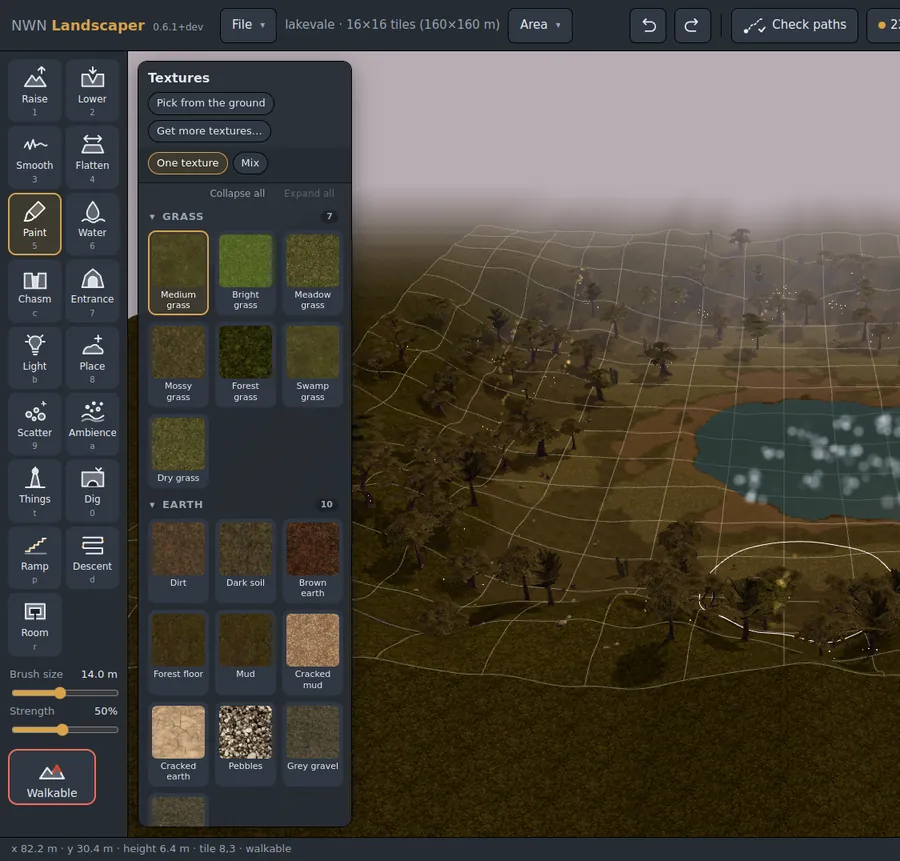
Pick a texture up from the ground
Press I (or click Pick from the ground, or Alt-click) and click the ground. On ground you painted it picks that texture.
On an imported area it picks the tileset's own texture under the click and adds it to the library, under Tileset, the first
time. It then paints like any other texture and goes into your texture hak at export.
Walls and steep ground
The ground's texture is drawn from above on level ground and from the side on walls and cliffs, so it keeps its size on every slope. Where a wall meets the floor, the floor is drawn from above right up to the wall and the wall from the side right down to the floor, so the two meet at a clean edge, in the editor and in the game.
The starter set's cliff rock, swamp rock and canyon rock repeat up a tall face as one rock: the moss, grass or sand along the foot of the game's pictures is left out, so a 20 m cliff has no stripe every 4 m. For moss at a cliff's foot, paint the ground there.
Paint a mix
The mix brush paints a blend of textures in patches: grass with dry patches and dirt, sand with pebbles.
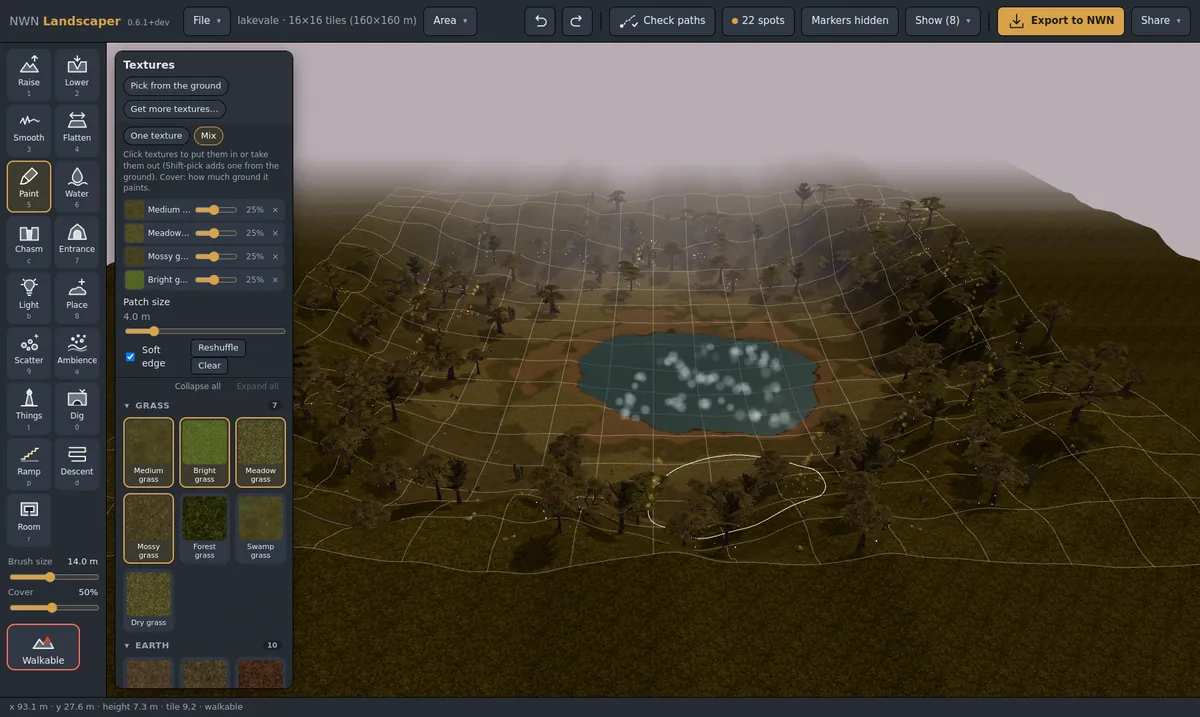
- Switch the panel to Mix, or Shift-click a texture to start one.
- Click textures to put them in the mix or take them out. Shift-pick from the ground adds the texture under the cursor.
- Each texture in the mix has a slider: its share of the mix. Set Patch size: how large each texture's patches are.
-
Drag over the ground. The strength slider becomes Cover: how much of the ground under the brush the mix paints.
-
Soft edge thins the mix out toward the brush's rim, so a stroke has no hard edge.
- Reshuffle lays the patches out anew for the next strokes.
- Clear takes every texture out of the mix.
Edges in the game
Where two textures meet, the export doesn't draw the paint's grid (a point every 0.625 m): it smooths each texture's paint over about 1.5 m and draws the edge along that. Natural ground gets a ragged edge, gravel poking into snow; laid surfaces such as cobbles, flagstones, floors and planks get a sharp one. Where a laid surface meets natural ground, the ragged edge wins.
- A line of paint one point wide, or a patch of up to about two points by two (the mix brush's soft edge makes them), is smoothed away. Paint lines at least two points wide.
- The editor draws the same edges, so what you paint is what the game shows.
How large a texture is drawn
Every texture repeats every 4 m of ground. The starter set's close-ups of small things repeat their picture inside those 4 m, so the stones come out a believable size from the game's camera and at eye level: pebbles and cobbles twice each way, and so are brick and plank floors, fieldstone walls and rippled sand. Drawn once across 4 m, a pebble was a foot wide.
The cliff rock, swamp rock and canyon rock repeat every 8 m instead: their fine layers, repeated every 4 m up a 20 m wall,
blurred into streaks like fur from the game's camera. A texture's metres in the library's catalog.json sets how much ground
one repeat covers (4 when it doesn't say).
Natural ground and rock don't show their repeat as a grid: each repeat is drawn in small cells, each shifted its own way and
blended into its neighbours, with a slow change of brightness over tens of metres, in the game and in the editor. Laid surfaces
(cobbles, planks, flagstones, brick) keep their regular pattern. A texture's vary in catalog.json turns it on (true) or off
(false); without it, a texture with a broken edge is varied and one with a crisp edge is not.
A library made before this gets the new pictures the next time the Landscaper starts, unless you changed one; it is then yours and left alone. For a texture of your own, make its picture cover 4 m of ground.
More textures
Get more textures lists the texture packs on offer. See Texture packs.
Missing textures
An area painted on another library can name textures this one hasn't got. The editor draws them as a magenta checker and says which, and how much of the ground each covers; Export refuses until they are gone. Click Add or swap them…:
- Add from the game makes starter textures from your game's files. On a team server only an admin sees it.
- Swap paints that texture's ground with one the library has. It suggests one made from the same game texture, else one of the same category. Undo takes a swap back.